Connect With SSH
Connect with SSH in Stack Console
You can manage your instance using a terminal and SSH. This allows you to connect securely and perform administrative tasks remotely. You can either use an SSH client or connect directly via your terminal. This guide provides step-by-step instructions to connect to your cloud instance using an SSH client or terminal for secure remote access.
Connecting to Your Instance via SSH
Before connecting to your instance, ensure you have the following information:
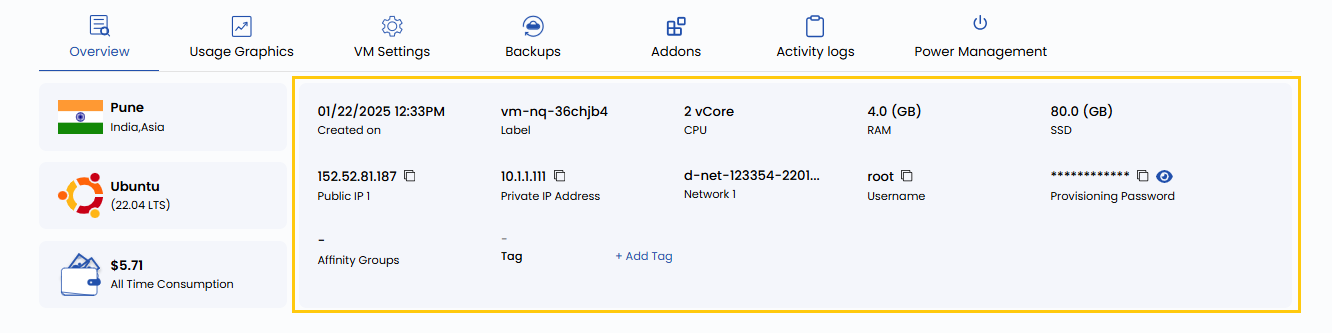
- IP Address: Available on the instance card or Virtual Machine Overview.
- Default Username: Depending on the operating system (
root,ubuntu,ec2-user). - Authentication Method:
- SSH Key (recommended) — Ensure you have access to your private key file.
- Default Password — Found in the Virtual Machine Overview if not using an SSH key.

Instance Information
-
The IP Address of your instance is displayed on the card of your instance after you have created it. You can hover over it to copy it.
-
More information about your instance can be found on the Virtual Machine Overview, which can be accessed by clicking on the name displayed on the Virtual Machine card.
Connecting to Your Instance
-
Open a terminal:
- On Windows: Use Command Prompt, PowerShell, or Git Bash.
- On macOS or Linux: Use the built-in terminal.
-
Use the appropriate SSH command to connect:
- If you are using an SSH Key:
ssh -i /path/to/your/private/key [username]@[ip_address] - If you are using a password:
ssh [username]@[ip_address]
- If you are using an SSH Key:
-
Enter your password if prompted. With a password:
ssh root@192.168.1.1
Conclusion
By following this guide, you can securely connect to your cloud instance using SSH. Whether you use an SSH key or a password, SSH provides a reliable and secure method for remote access and management. For further assistance, refer to the Stack Console documentation or reach out to support.
See also: